

Retrain a model after adding images
A model improves in rounds: you add the images it got wrong, correct labels, and train again. The new training should differ from the last one only in its images, so that you can compare the two. This guide starts a new training with the settings of the previous one, and shows how to continue from the model already trained instead of starting from scratch.
What you will learn
- How to copy the settings of an earlier training
- What is copied and what is not
- How to continue training from a model you already have
Before you start
You need a dataset with a finished training and the new images labeled: see Find where a model fails and fix it.
1. Start a new training
Open the dataset, go to «Models», click «Train a new model» and choose «Production training». Give the new model a name that follows the last one, such as a version number.

2. Copy the settings of the last training
In «Training configuration», click «Copy from another training». The dialog lists the trainings of this dataset with their model and score, newest first; «Dataset» shows those of another dataset. Click one to see its settings on the right.

3. Apply it
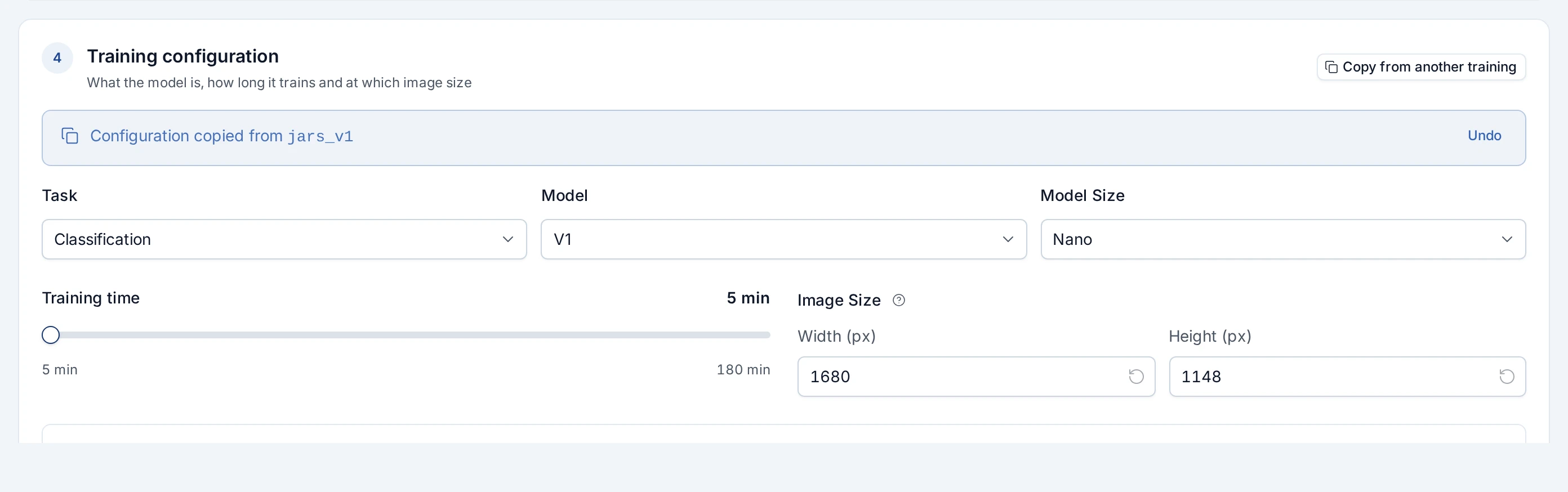
Click «Apply configuration». The type and size of model, the training time, the image size, the slicing, the export formats and the advanced parameters take the values of that training. The name, the tags and the split are not copied: they belong to the new training. A note says where the settings came from; «Undo» puts back the previous ones.
4. Or start from the model you have
A new training starts from a general model and learns everything again. «Train from model», at the end of «Model», starts instead from a model you have already trained: it keeps what that model learned and goes on with the images of this dataset, which usually needs less time. It is offered for the V1, V2 and V3 models.
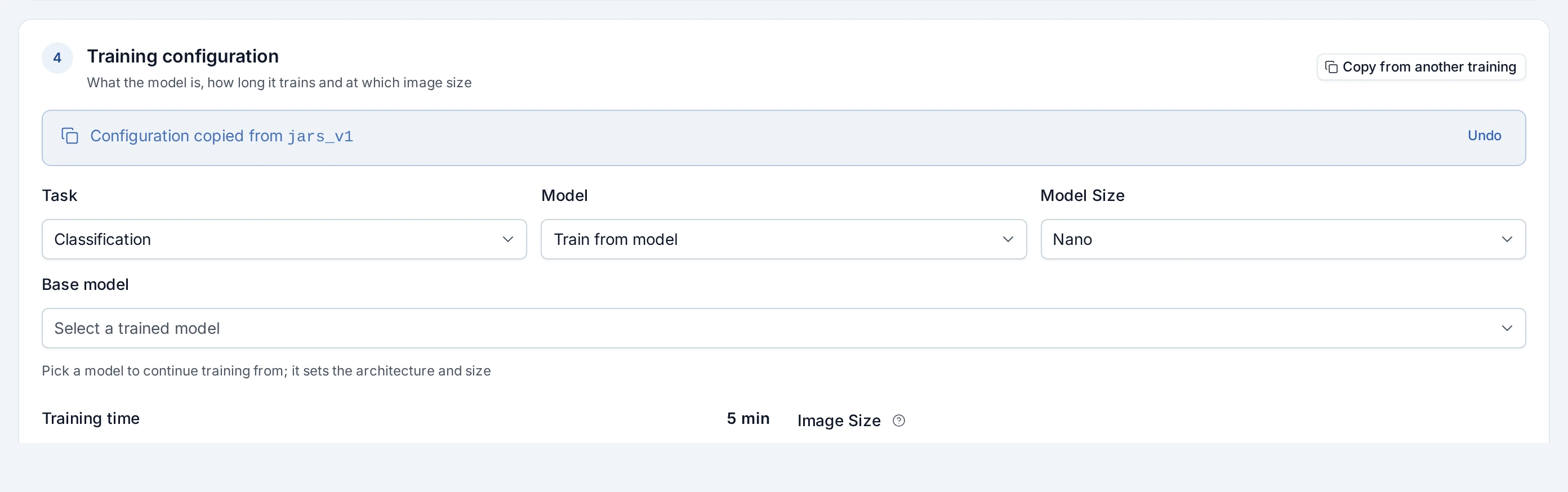
5. Choose the base model
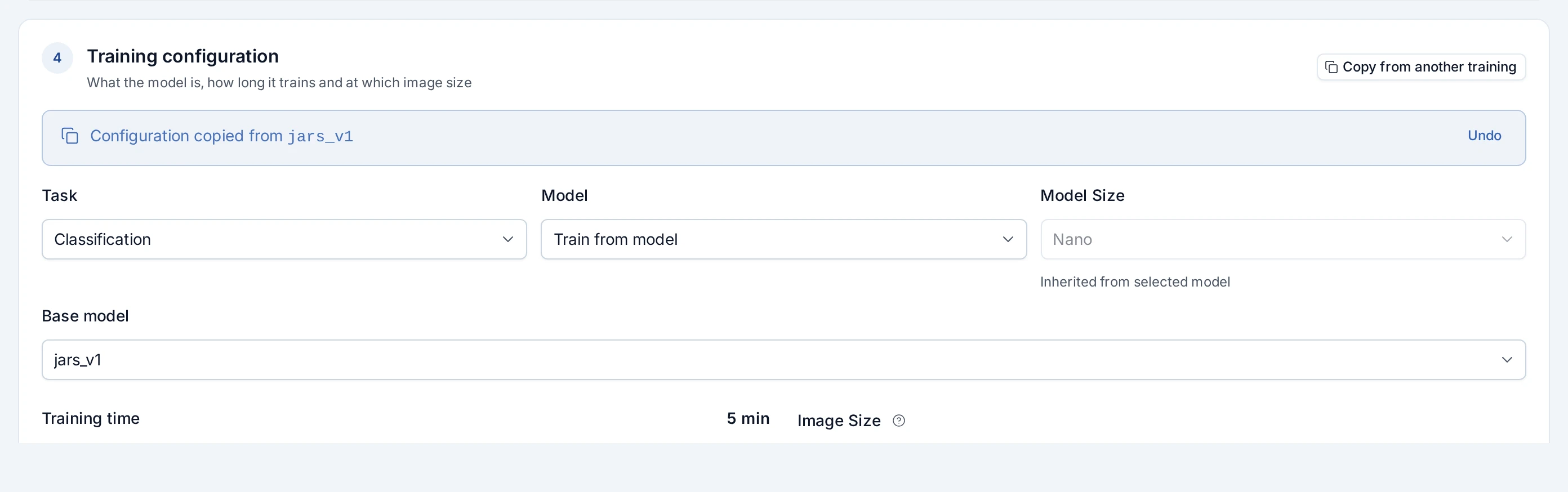
In «Base model», choose the model to continue from: the list holds the finished models of the project that can seed this one, from any dataset. The base model fixes the architecture and the size, so «Model Size» shows «Inherited from selected model».
6. Check and train
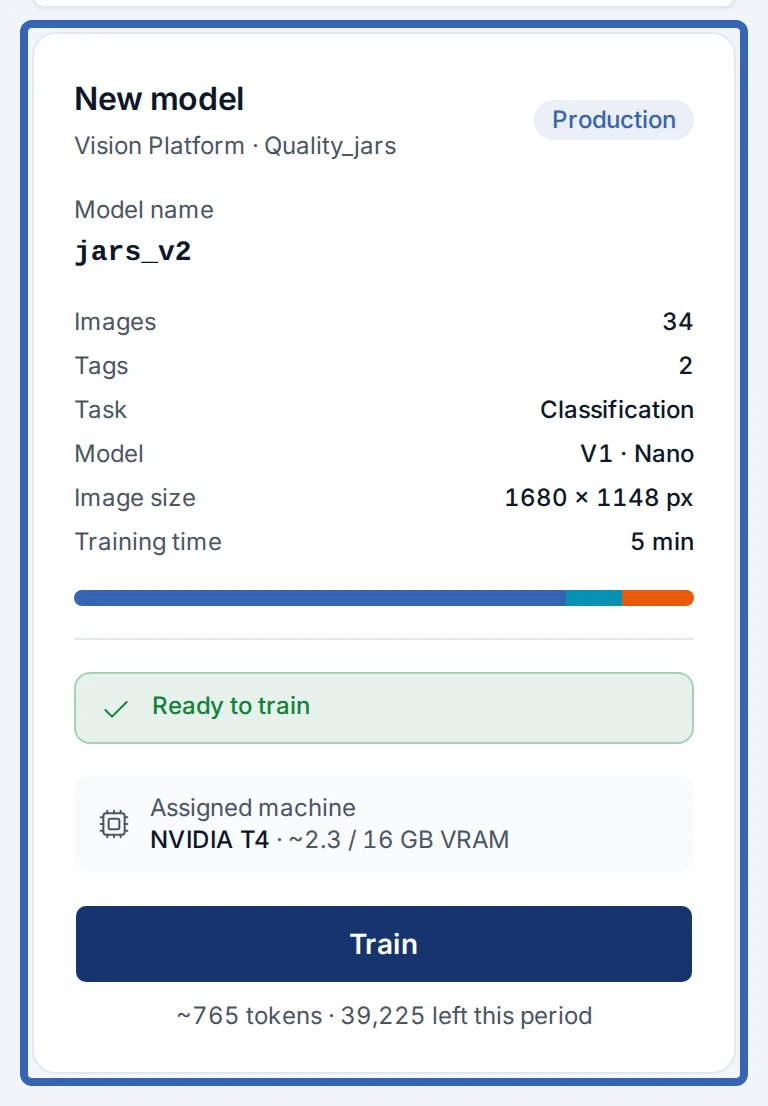
The summary on the right shows the new training and its price. Click «Train» to launch it, as in Train your first model. When it ends, compare its scores with the last one in «Models»: Find the best model of a dataset.
Which one to use
| You changed | Use |
|---|---|
| Some images or labels, and you want to compare with the last model | «Copy from another training» |
| Nothing in the settings, and you want to save training time | «Train from model» with the last model |
| The dataset a lot, or the model did not learn well | A new training from scratch, perhaps with a larger model or more time |
Next steps
Recorded on Rosepetal release 1.8.15.